
Upcoming
A Simple Planner
A simple list of what’s coming up. Add things as they come to mind, see your days at a glance, and mark them off as you go.
Download on the App StoreFree for iPhone and iPad with iOS 26 or later.
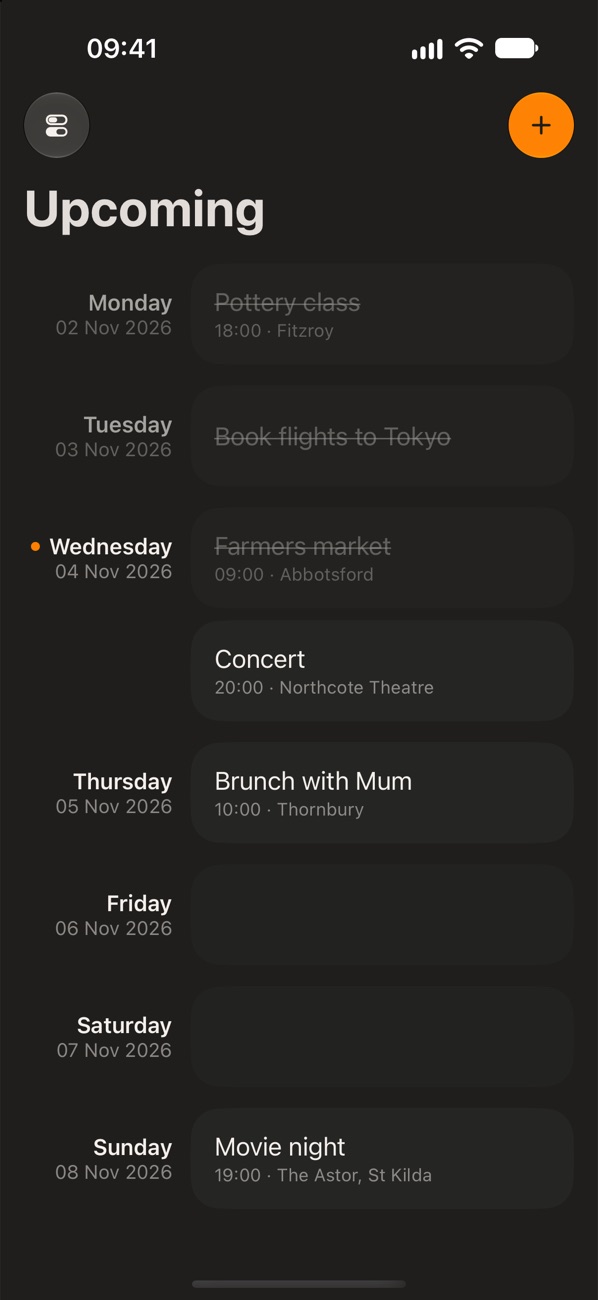
What’s upcoming
Upcoming does a few things, and keeps out of the way.
Make a simple planner
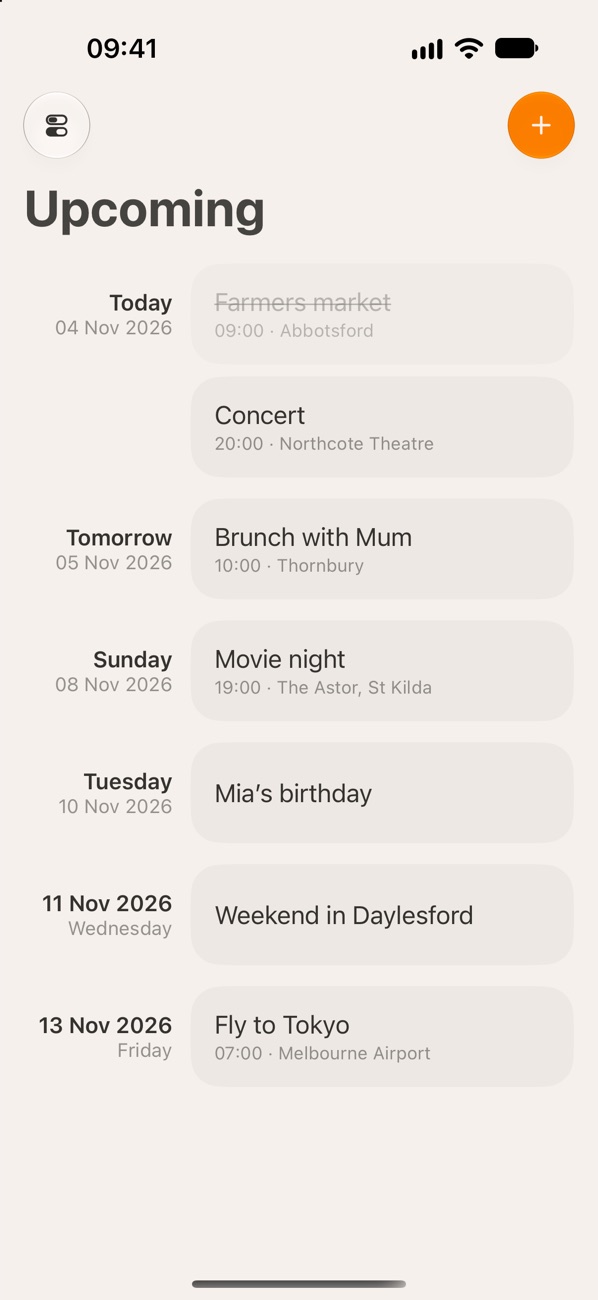
See what’s coming up
Everything ahead, day by day. Past items tuck away above, out of sight until you scroll back.
Widgets
See what’s coming up, or just today, on your Home Screen and Lock Screen, and mark things as done without opening the app.
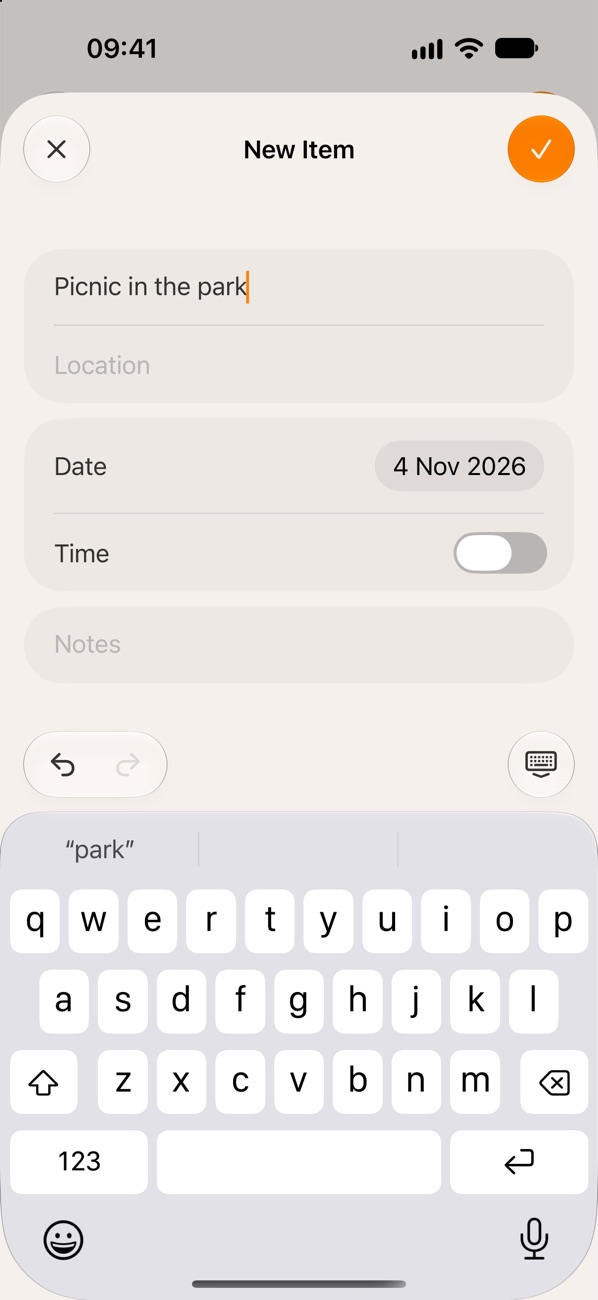
Add in a moment
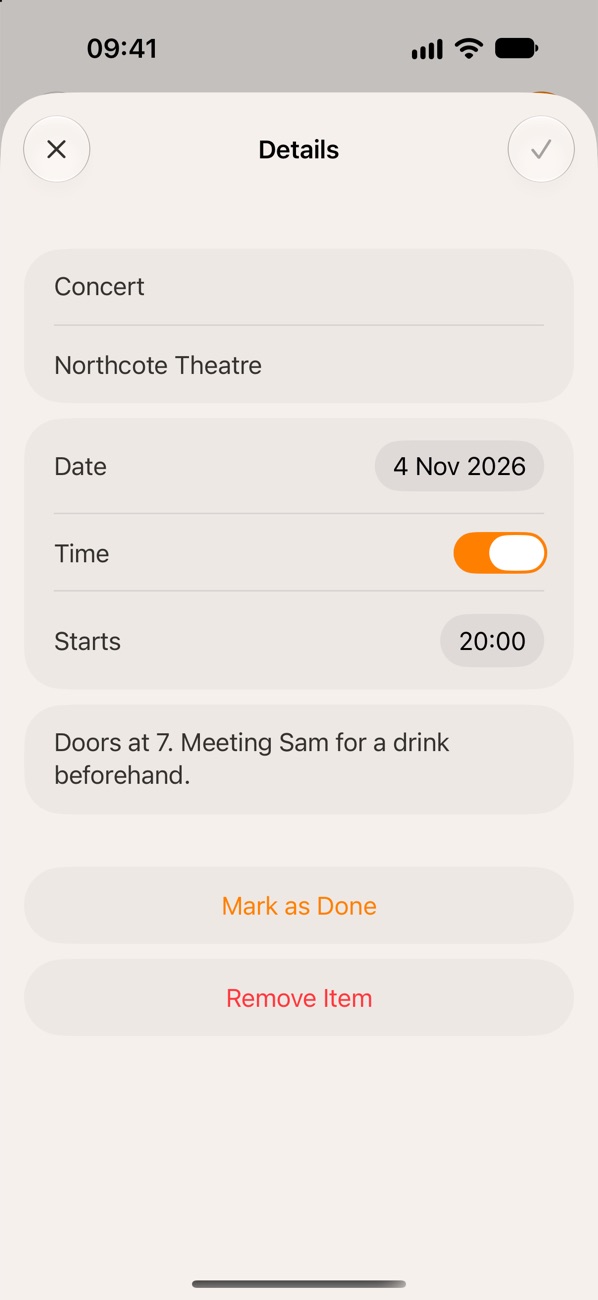
Tap + or double-tap a day. Add a time, location or notes, only if you need them.
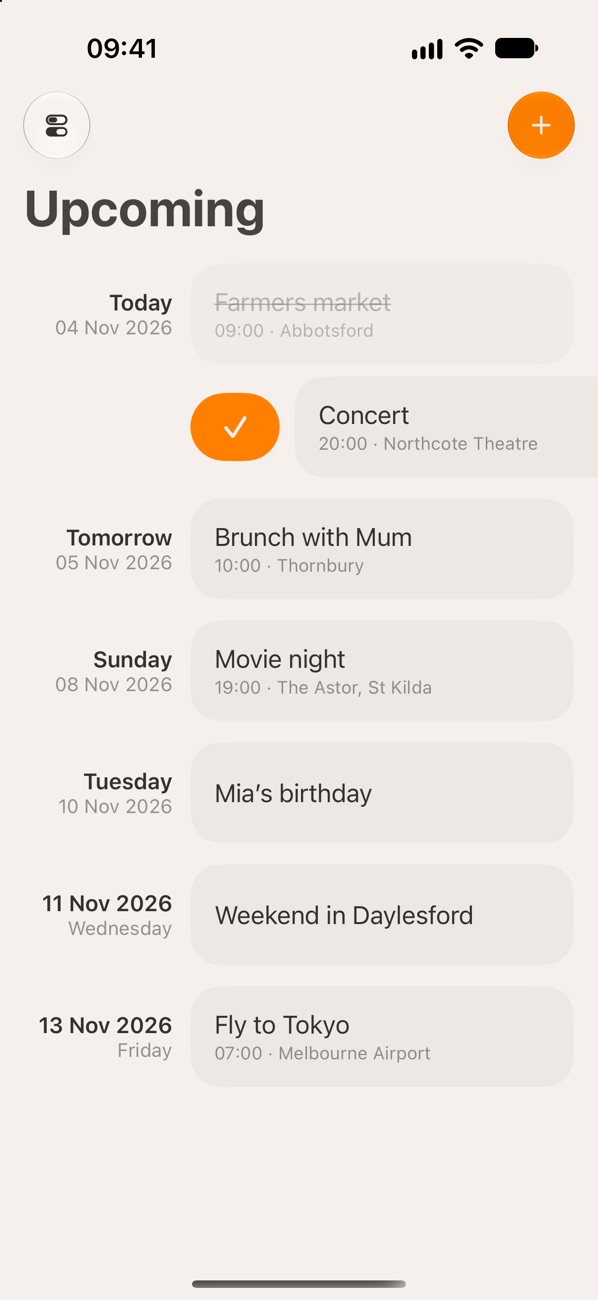
Mark as done
Swipe right to mark something as done, and again if you didn’t mean to. Swipe left to remove it.
Add again
Add a past item again for today, with its details already filled in.
Every day, or just the busy ones
Turn on Show All Days to see every day, empty ones included, with the week starting on the day you choose.
Weekly Reminder
An optional notification, once a week, to look over what’s coming up.
Side by side
On iPad, and on iPhone Duo when it’s unfolded, see your list and an item side by side. On iPad, choose One or Two Columns in Settings.
Synced with iCloud
Your items stay on your devices and in your own iCloud. Nobody else sees them.
Your theme
Automatic, Light, Dark or Black, and a Light or Dark app icon to match.
Bring your plans with you
Import items from spreadsheets (CSV), calendar files or plain text, and export them as JSON or CSV, in Settings › Manage Data.
Support
Upcoming is made by one person. Questions and ideas are always welcome.
Found a problem, or have a suggestion? Email j@ckwal.sh and I’ll get back to you.
Where are my items kept?
On your device, and in your private iCloud when you’re signed in to iCloud. You can check this in Settings › Data › iCloud Sync.
How do I move my items to a new iPhone?
Sign in to the same iCloud account and they’ll sync across. You can also export a JSON file from Settings › Manage Data and import it on the new device.
Can it remind me about each item?
No, on purpose. There’s one optional Weekly Reminder to look over the week ahead, which you can turn on in Settings.
I marked something as done by mistake
Swipe right on it again, or open it and choose Mark as Not Done. Items from earlier days can’t be changed, but you can Add Again.
How do I add the widget?
Touch and hold your Home Screen or Lock Screen, then add a widget and choose Upcoming. To see just today, edit the widget and set Show to Today.